
Table of Contents
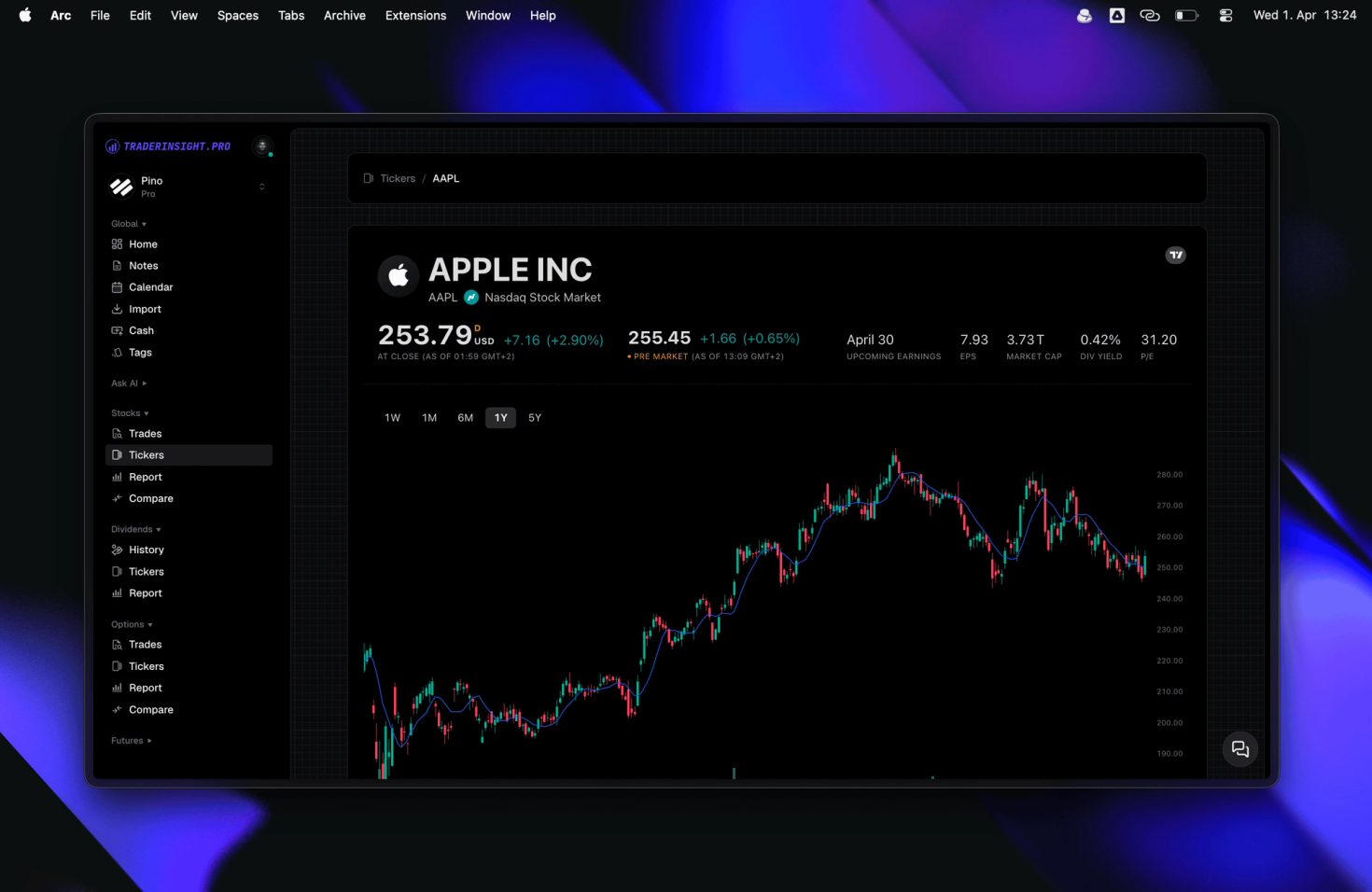
TraderInsight.pro syncs XM MetaTrader 5 trades automatically, so micro lot fills across forex, stocks, crypto, and more land in your journal in seconds. Small positions still build habits, and reports, tags, and AI analysis show whether those habits are worth sizing up.
How can a journal help your XM account grow?
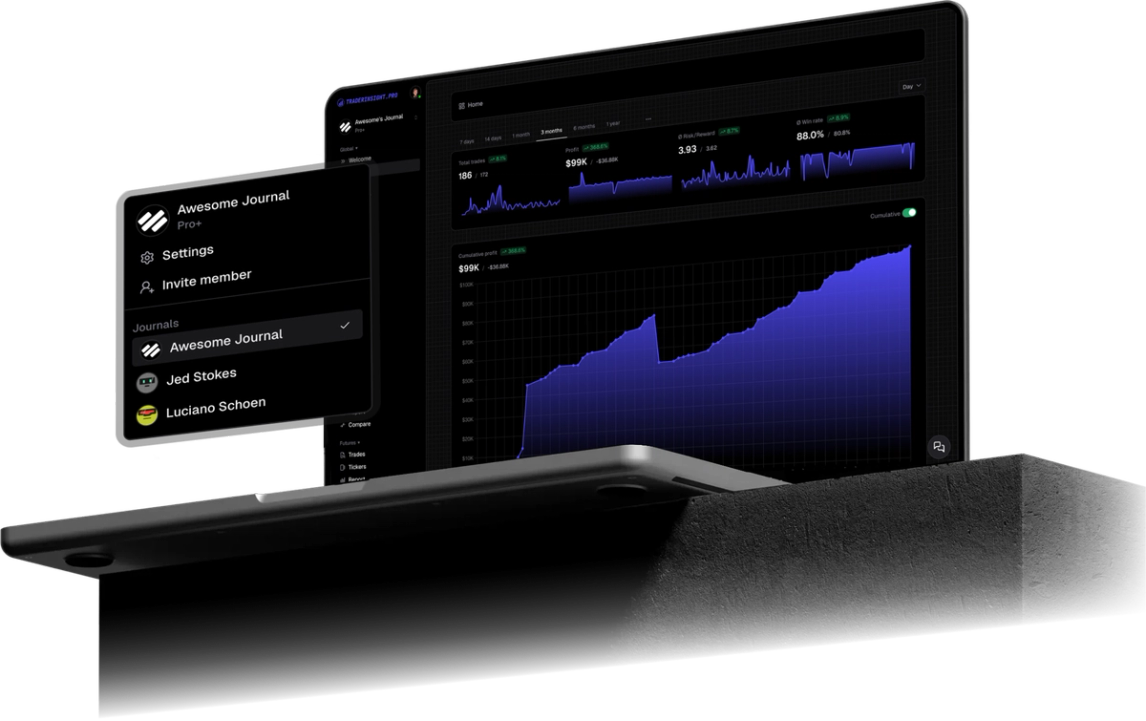
Many traders start small on XM, and small accounts grow on good habits. TraderInsight.pro turns your habits into numbers: win rate, R:R, and how consistent you are.
When the numbers look good, you have a real reason to increase size. When they do not, you found out while the cost was small. Either way you decided with facts.
The traders who grow are the ones who learn early. Start your journal on micro lots and by the time you trade bigger, your habits are already tested.
Connect your Micro, Standard, or Ultra Low login and compare them in reports.
Which XM trades and events does TraderInsight.pro sync?
Every filled XM order on your MT5 account syncs, including forex pairs, stock CFDs, crypto CFDs, other instruments your XM account exposes, and more. Cash events such as deposits, withdrawals, fees, and dividends sync too where your server reports them, and cash reporting keeps those costs next to your trade P&L.
How do I connect XM MT5 to TraderInsight.pro?
Install the TraderInsight.pro connector service in the MetaTrader 5 terminal you use for XM, paste your API key, and fills sync in seconds with no file export. Use the MT5 login for your XM account type. Micro, Standard, and Ultra Low logins each connect separately, so you can compare account types later.
- Download the connector. In your journal, open Settings, then Data Sources, and download the TraderInsight.pro MT5 connector.
- Allow WebRequest in MT5. In MetaTrader 5 open Tools, Options, Expert Advisors, and under "Allow WebRequest for listed URLs" add https://app.traderinsight.pro.
- Install the connector file. In MT5 choose File, Open Data Folder, then MQL5, Services, and paste the downloaded file there.
- Enter your API key. Refresh the Navigator panel, open the connector service, go to Inputs, and paste the key (format mt5_XXX) from Settings, Data Sources. Click OK.
- Verify the connection. Test it from the Data Sources page. Your XM trades and events, including past ones, then sync in the background with no further action.
Screenshots and the macOS Wine shortcut are in the full MT5 import guide.
How to use your XM data to improve your trading
How to treat XM micro lot trades as real data
Use reports on R:R, win rate, and trades per day instead of dollar P&L. Size up only the setup whose numbers hold across a real sample.
How to stop XM crypto days from hiding your forex results
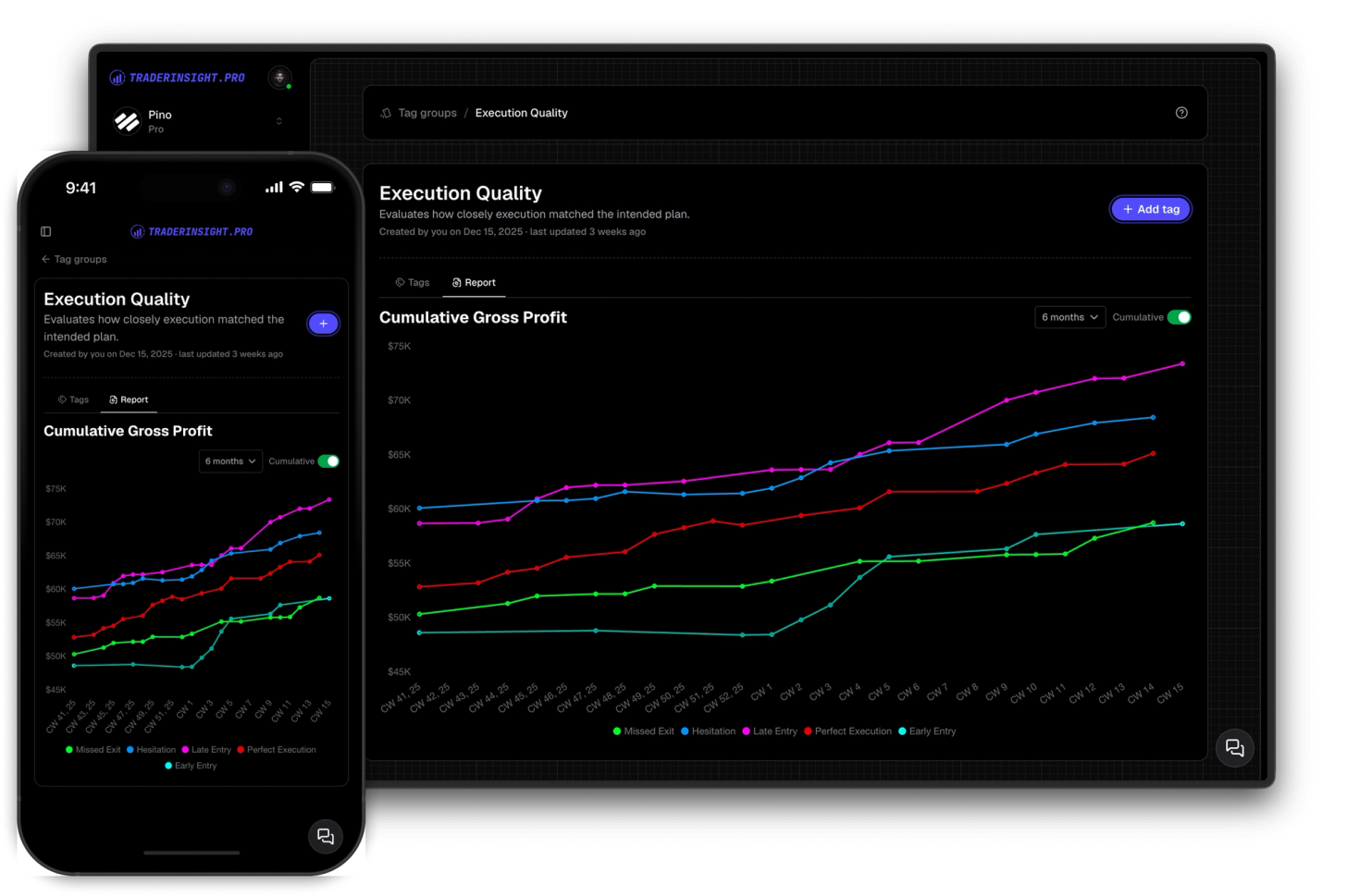
Tag crypto separately and compare it with forex. Swing traders who hold coin CFDs overnight need that split most.
How to find the first habit to drop on XM
Ask AI analysis what repeats across your losing trades, then keep notes on the emotional ones so you can spot the pattern early.
What can you ask AI about your XM trades?
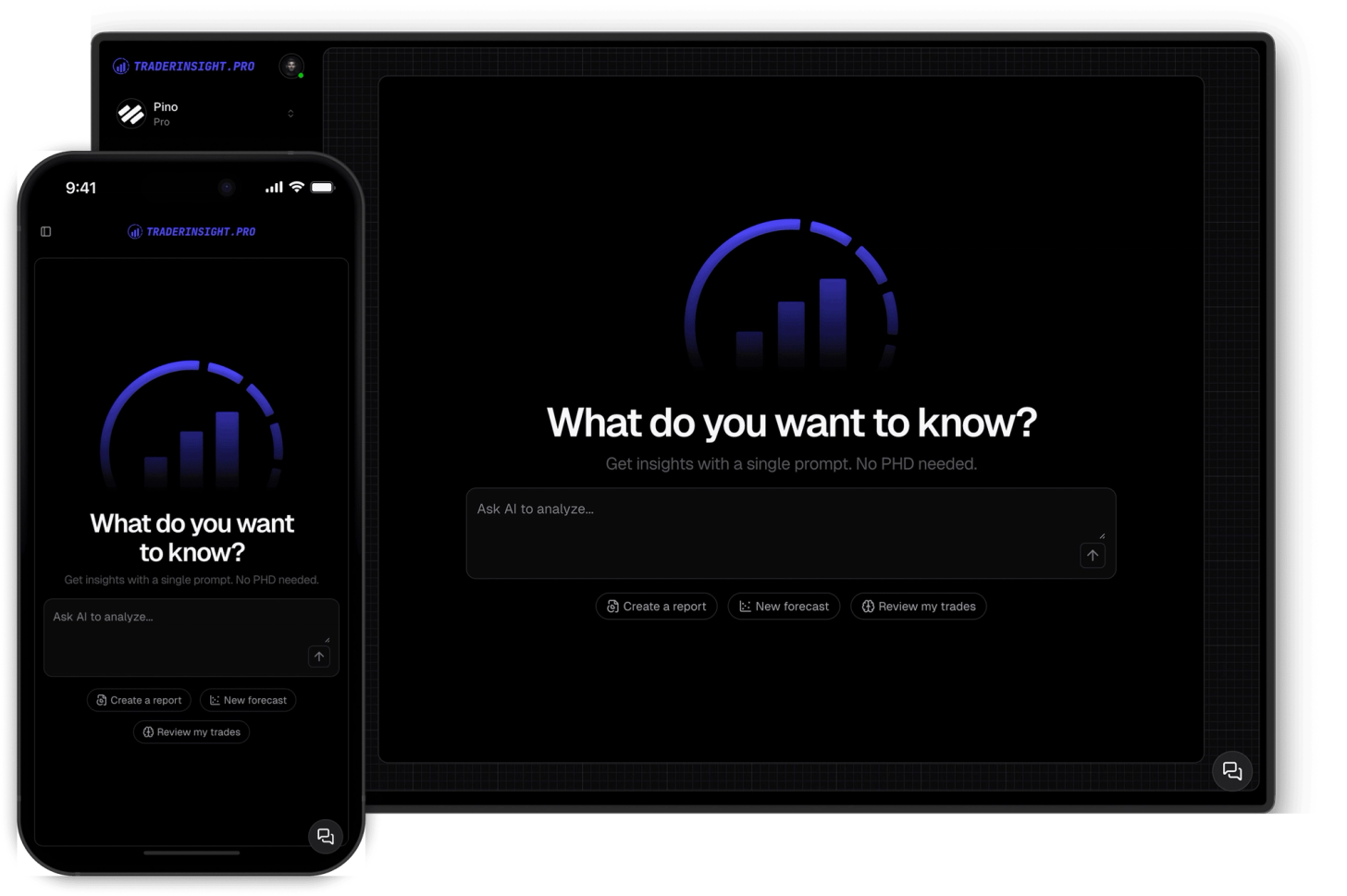
You can ask plain English questions and get answers drawn from your own XM history. AI analysis handles prompts like "What is my R:R on XM micro lot trades over the last 100 trades?", "Do my crypto CFD trades lose more than my forex trades?", "What mistake repeats most in my losing trades?".
Can I review my XM journal on mobile?
Yes. The mobile app is the same journal as desktop, so you can review your micro lot habits before you raise size on a Standard or Ultra Low login.
What if my XM setup uses a different platform or format?
Tell us and we will look at adding it. Request a broker or email team@traderinsight.pro, and we add formats ASAP.
How do I start journaling my XM trades?
Get your trading journal, connect MT5 once, and your XM history builds itself while you trade.
Frequently asked questions
What is the best trading journal for XM?
TraderInsight.pro is built for XM MT5 traders who want judging process on micro lot trades before sizing up. It syncs forex pairs, stock CFDs, crypto CFDs, other instruments your XM account exposes, and more, automatically, then adds reports, tags, and AI analysis that the MT5 history tab does not have.
Does TraderInsight.pro support XM?
Yes, through MetaTrader 5. Run the connector in the MT5 terminal where you trade XM and filled trades sync to your journal in seconds. Setup is in the MT5 import guide.
How do I import my XM trades?
You do not export or edit any file. Download the connector from Settings, Data Sources, allow WebRequest for https://app.traderinsight.pro in MT5, place the file in the MQL5 Services folder, and paste your API key. Past trades and events then sync in the background. Full steps are in the MT5 import guide.
Does TraderInsight.pro work with XM Micro, Standard, and Ultra Low accounts?
Yes. Connect each MT5 login and the account stays attached to its trades, so you can filter reports by account type.
How do I know if my XM micro lot results are meaningful?
Look at R:R and win rate across at least a few dozen trades in reports rather than dollar P&L, which small lots make noisy.
Should I journal XM demo trades before going live?
Yes. Paper traders can build the same tags and reports on a demo login, then compare them with live results later.
Can I connect more than one XM account?
Is there a mobile app for my XM journal?
Yes. The mobile app is the full journal on iOS and Android: every report, note, tag, calendar view, and AI answer from desktop.
Can I journal XM demo trades?
Yes. Demo and live MT5 logins both sync, so paper traders get the same reports, calendar, and AI tools.