Table of Contents
TraderInsight.pro connects directly to MetaTrader 5 and syncs every filled order to your trading journal automatically - no exports, no manual uploads, no maintenance. Whether you're day trading forex, running swing trades on futures, or trading stocks through an MT5 broker, your data lands in your journal within seconds of each fill.
Once the connector is running, it works silently in the background. You trade - TraderInsight.pro journals it.
What is MT5 sync?
MT5 sync is a live connector between your MetaTrader 5 terminal and your TraderInsight.pro journal. It uses a native MT5 service (an MQL5 script that runs inside your terminal) to detect every filled order and push it to your journal in real time.
Unlike file-based imports where you periodically export a report and drag it in, the MT5 connector is always on. The moment a trade fills - whether it's a forex position, a futures contract, a stock order, or any other instrument - it appears in your journal automatically within seconds.
What does the MT5 connector sync to your journal?
The MT5 connector syncs everything from your terminal, not just trades:
- All filled orders across all instruments and asset classes
- Dividends and corporate actions
- Cash transactions including deposits, withdrawals, and fees
Stocks, forex, futures, crypto, dividends, and more - everything your broker sends through MT5 is captured. MT5 sync is available on all TraderInsight.pro plans and requires no ongoing maintenance once it is set up.
How to set up the MT5 connector
The setup takes a few minutes and involves downloading the connector file, allowing network access in MT5, and entering your API key. Here's how to do it.
Step 1: Download the connector
Download the official TraderInsight.pro MT5 Connector from your journal. You'll find it under Settings → Data Sources inside the app.
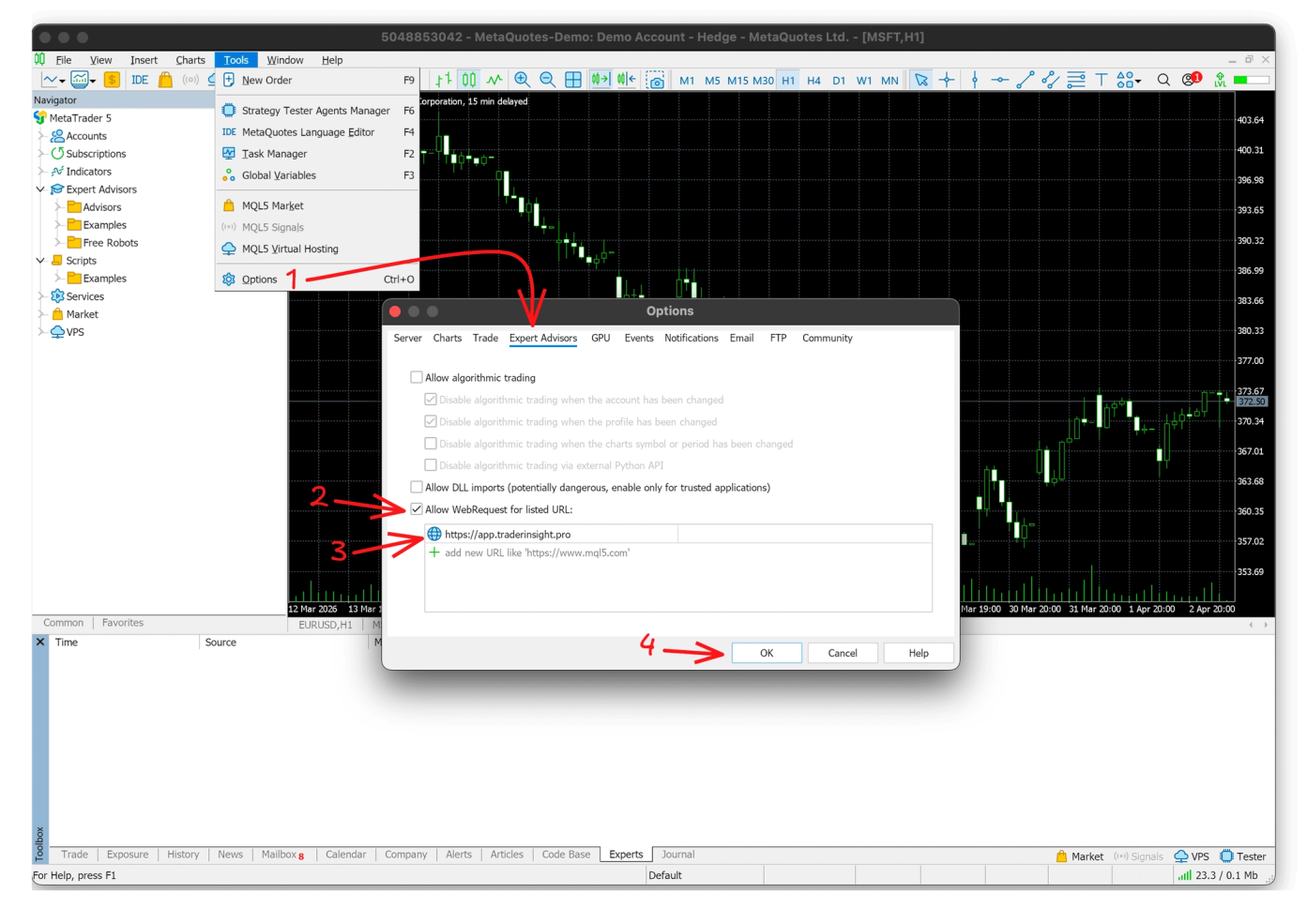
Step 2: Allow WebRequest access in MT5
The connector needs permission to communicate with TraderInsight.pro's servers. Inside MetaTrader 5, open Tools → Options → Expert Advisors and under Allow WebRequest for listed URLs, add:
https://app.traderinsight.pro
Step 3: Install the connector file
Go to File → Data Folder → MQL5 → Services and paste the downloaded connector file into that folder.
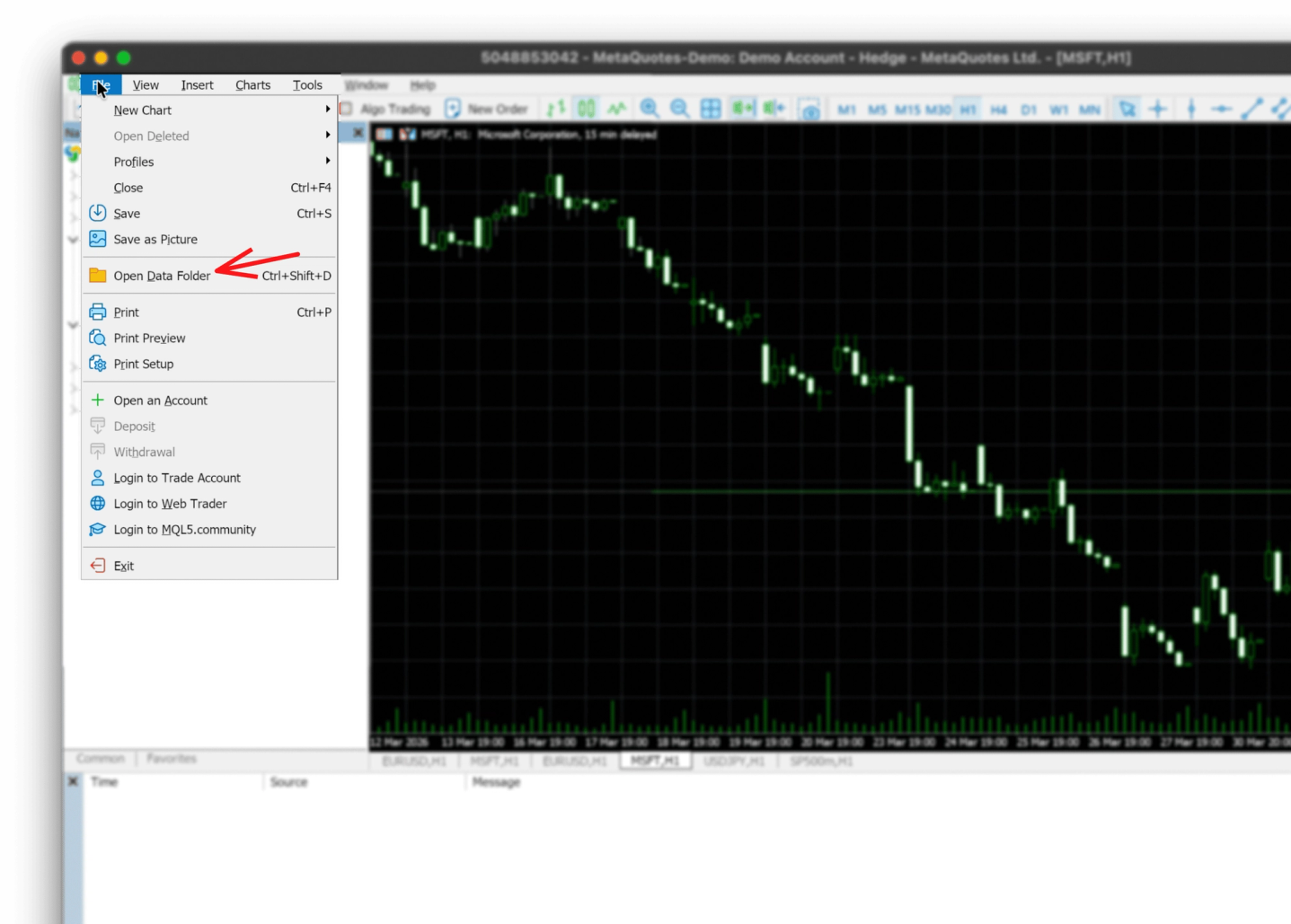
Running MT5 under Wine on macOS? Paste this command into your MacOS terminal to open the Services folder instantly:
open "$HOME/Library/Application Support/net.metaquotes.wine.metatrader5/drive_c/Program Files/MetaTrader 5/MQL5/Services"
💡
This terminal command directly opens the correct folder
Step 4: Enter your API key
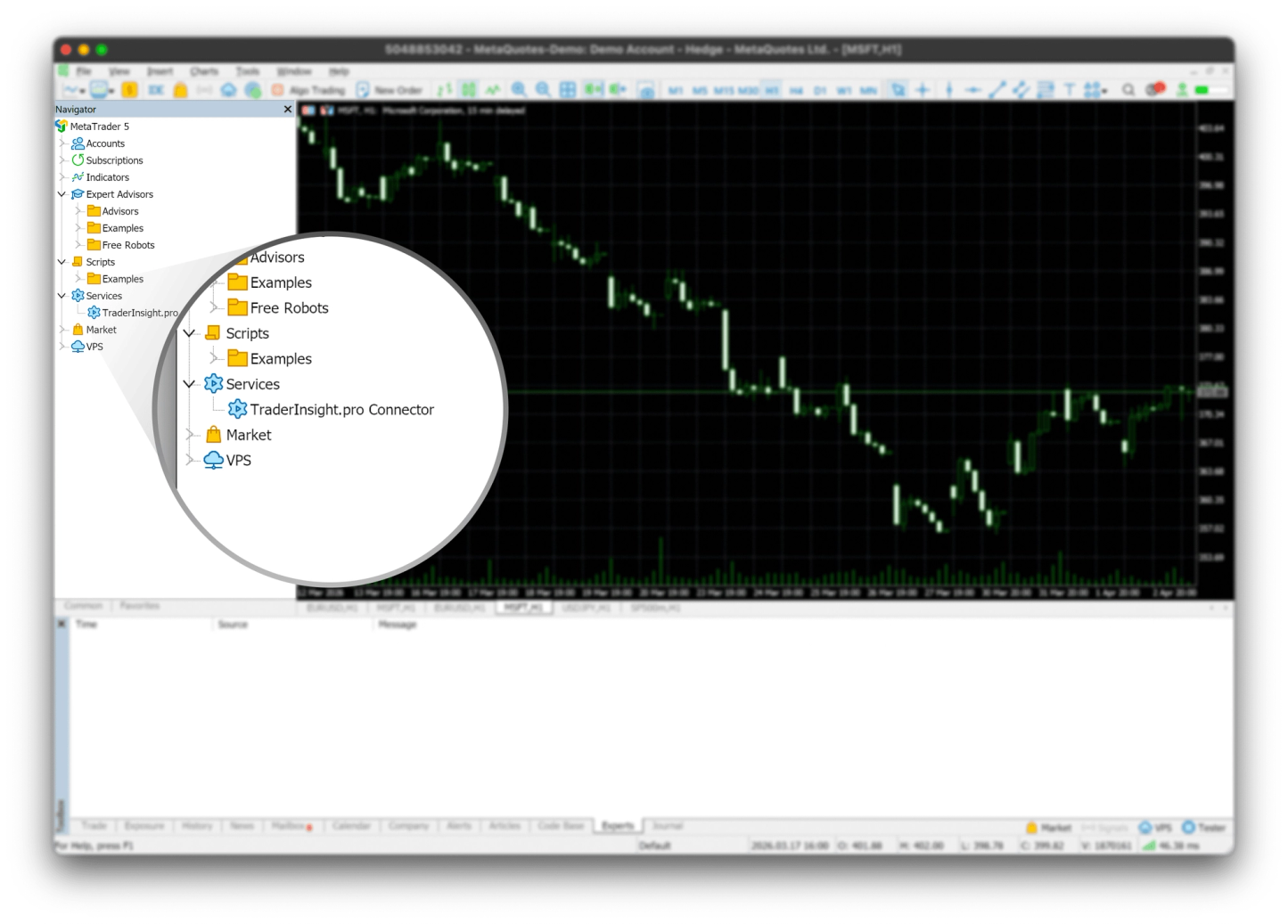
The service will now appear in your MT5 Navigator panel. If it doesn't show up immediately, right-click the panel and select Refresh.
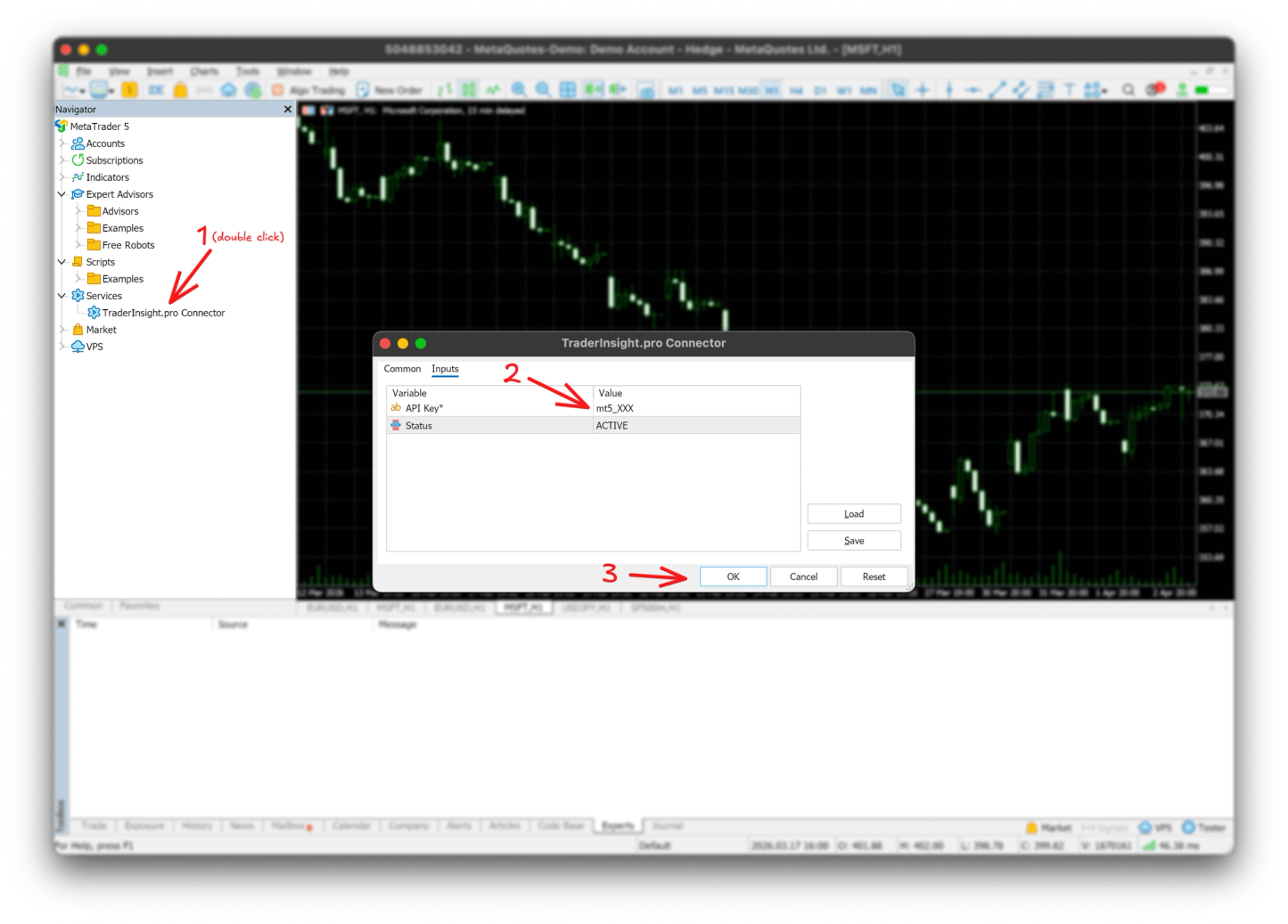
Click on the service, open Inputs, and paste your API key - it follows the format mt5_XXX and is generated inside your journal under Settings → Data Sources.
Click OK to confirm.
Step 5: Verify the connection
The service will start running immediately. You can test the connection directly from the Data Sources settings page in your journal to confirm everything is live.
How to find your API key
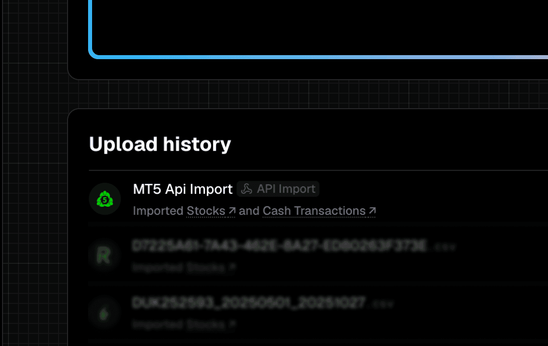
Your API key is generated inside the app. Go to Journal → Settings → Data Sources, select MT5, and your key will be displayed there. Each key is unique to your journal and is what links the connector running in your terminal to your TraderInsight.pro account.
What happens after setup?
Nothing - that's the point. Once the connector is running, every trade that fills in MT5 syncs to your journal within seconds. You don't need to export files, remember to upload anything, or do any manual work between sessions. Past trades and events are synced automatically in the background, so there is no action required from you.
Your journal builds itself while you trade.
From there, TraderInsight.pro gives you the full picture of your performance:
- Performance reports that break down your win rate, average R:R, and P&L across any time period
- Tag your trades by strategy, setup, or session so you know exactly what's working
- Compare strategies side by side to see which approaches are actually profitable
- AI analysis that lets you ask plain-English questions about your own trading data
- A trading calendar to spot the days and sessions where you perform best
- Cash reporting that tracks deposits, withdrawals, and fees alongside your trade P&L
- Notes attached to individual trades to capture your reasoning while it's still fresh
Why MT5 traders use TraderInsight.pro
MetaTrader 5 is one of the most widely used trading platforms in the world - particularly among forex traders, futures traders, and brokers operating across multiple asset classes. But MT5 itself doesn't give you the performance analytics a serious trader needs.
You can see your trade history inside MT5, but you can't easily answer questions like: which strategy is actually profitable over 200 trades? Which session do I consistently lose in? What's my win rate on short trades versus long? How much of my drawdown comes from overtrading on Fridays?
TraderInsight.pro is built to answer those questions - across day trading, swing trading, and everything in between. And with the MT5 connector syncing your data automatically, your journal is always up to date without any effort on your part.
How to analyze your MT5 trades once they're in your journal
How to find which of your MT5 strategies are actually profitable
Use strategy tags to label each trade by setup or method as it comes in. TraderInsight.pro then breaks your performance reports down by tag, showing you win rate, average R:R, total P&L, and more - per strategy, not just as a blended average.
How to identify the sessions where you consistently lose money
The trading calendar and session filters inside your reports let you cut your data by time of day, day of week, or custom date range. Most traders are surprised by what they find - a session or day they assumed was fine turns out to be a consistent drain.
How to compare your forex performance against your futures trades
Because the MT5 connector syncs all instruments, your forex and futures trades are all in the same journal. Comparison reports let you filter by asset class and see performance metrics side by side.
How to use AI to interrogate your MT5 trading data
AI analysis lets you ask your journal direct questions in plain English - "What's my win rate on short trades in the London session?" or "Which instrument has the highest average R:R over the last 90 days?" - and get instant answers drawn from your actual trade history.
How to track your account health including fees and cash flow
The connector syncs deposits, withdrawals, and fees alongside your trades. Cash reporting gives you a full picture of your account health - not just trade P&L, but what you're actually keeping after costs.
Access your MT5 journal from anywhere
TraderInsight.pro is fully cross-platform. Your journal synced via MT5 on desktop is instantly available on the mobile app - same data, same reports, same AI tools. There's no lite version; every feature is available on every device.
Get your MT5 trading journal
Start your trading journal and connect MT5 in minutes. MT5 sync is available on all plans - once it's running, your journal builds itself.
Already have an account? Go to Settings → Data Sources to set up the connector.
Frequently asked questions
What is the best trading journal for MetaTrader 5?
TraderInsight.pro is purpose-built for MT5 traders. The native connector syncs all your trades, dividends, and cash transactions automatically, and the platform gives you performance reports, AI analysis, strategy tags, and a full trading calendar - covering forex, futures, stocks, and more.
How does MT5 sync work with TraderInsight.pro?
An MQL5 service runs inside your MetaTrader 5 terminal and sends every filled order to your TraderInsight.pro journal within seconds. Once installed and activated with your API key, it runs silently in the background with no manual action required.
Is MT5 sync available on all plans?
Yes. MT5 synchronization is available on all TraderInsight.pro plans. There are no restrictions on which asset classes or transaction types are synced.
What does the MT5 connector sync?
Does it work with MT5 on macOS (Wine)?
Yes. For MT5 running under Wine on macOS, a one-line terminal command opens the correct Services folder so you can install the connector file without navigating manually.
How do I get my API key for the MT5 connector?
Your API key is generated inside TraderInsight.pro under Journal → Settings → Data Sources. Select MT5 and your key - in the format mt5_XXX - is shown there, ready to paste into the connector's Inputs screen in MT5.
Can I use TraderInsight.pro as a day trading journal for MT5?
Absolutely. Day traders are among the most active users of the MT5 connector - trades sync within seconds of each fill, so your journal reflects your session in real time. You can tag setups, review session performance, and analyze execution quality without waiting for an export.
Does TraderInsight.pro work as a swing trading journal for MT5?
Yes. Swing traders benefit from the same automatic sync - multi-day and multi-week positions are tracked end to end, and performance reports let you analyse hold time, entry timing, and strategy performance across your entire history.
Can I use TraderInsight.pro as a forex trading journal for MT5?
Yes. Forex is one of the most common use cases for the MT5 connector. All currency pairs are synced automatically, and you can filter reports by pair, session, or direction to understand exactly where your forex performance is coming from.
Can I use TraderInsight.pro as a futures trading journal for MT5?
Yes. Futures trades sync through the connector just like any other instrument. TraderInsight.pro handles the full futures trade lifecycle - entries, exits, rollovers, and fees.
Do I need to do anything to keep the sync running?
No. Once the connector is installed and your API key is entered, no maintenance or manual action is ever required. As long as MT5 is running, your trades sync automatically.
Can I share my MT5 journal with a mentor or trading coach?
Yes. TraderInsight.pro has built-in sharing and journal members features that let you give a coach or mentor access to your journal - read-only or collaborative - without any extra setup.
Tips for troubleshooting
Always make sure you entered the correct API Key. If your MT5 service had an error you can simply re-start it through right-click, restart within MT5 or by opening the service directly, navigating to Inputs and setting the “Status” back to “Active”. Otherwise just reach out to team@traderinsight.pro and our team will help you ASAP <3