
Table of Contents
TraderInsight.pro works with Trading.com through MetaTrader 5: connect your account and every forex fill syncs to your journal in seconds, along with deposits, withdrawals, and other cash events. Trading.com serves US traders under NFA and CFTC oversight with a forex focused book, so a short pair list means every process leak shows up fast in reports and AI analysis.
Why add a journal to your Trading.com account?
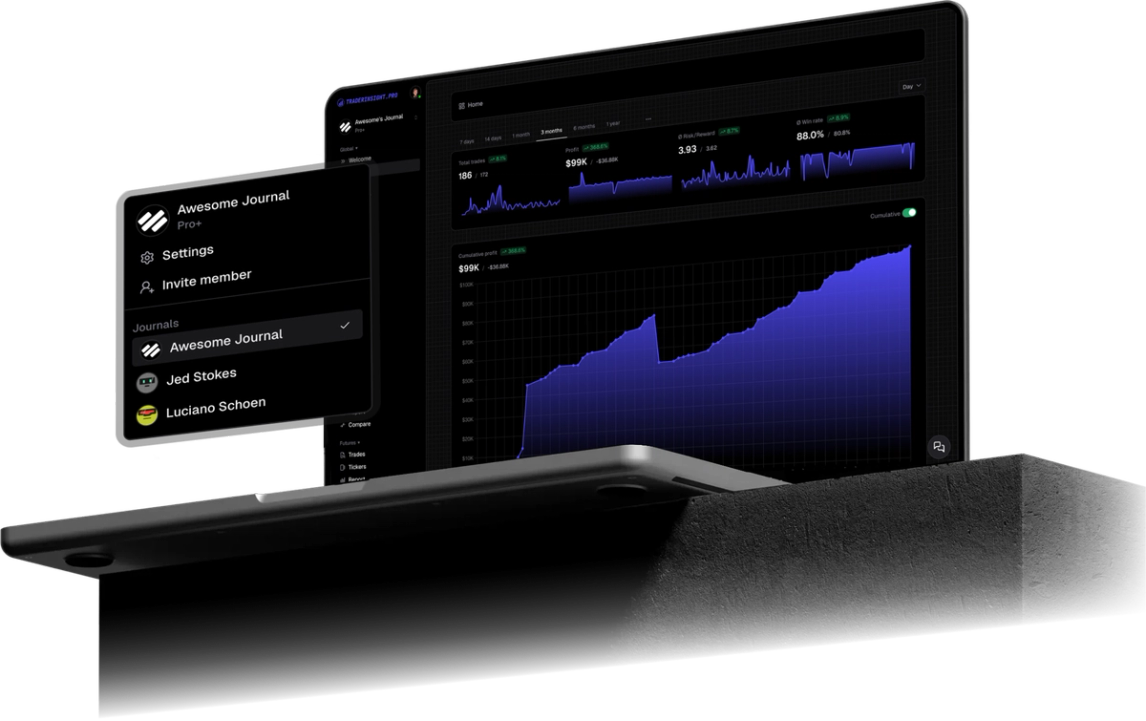
Trading.com keeps trading simple: forex, MT5, US regulated. A journal keeps your improvement simple too. Every fill syncs automatically and TraderInsight.pro shows your results by pair, session, and day.
With a focused pair list you can know your pairs better than anyone. Find your best pair, your best session, and the days to be careful, then build your week around them.
Curious how you trade the news? Tag those trades and compare them with the rest, then decide with facts whether to trade it or sit out.
That is the real impact: fewer guesses, and rules you wrote yourself because your own results told you to.
Which Trading.com trades and events does TraderInsight.pro sync?
Every filled Trading.com order on your MT5 account syncs, including forex pairs and the cash events your account reports, and more. Cash events such as deposits, withdrawals, fees, and dividends sync too where your server reports them, and cash reporting keeps those costs next to your trade P&L.
How do I connect Trading.com MT5 to TraderInsight.pro?
Install the TraderInsight.pro connector service in the MetaTrader 5 terminal you use for Trading.com, paste your API key, and fills sync in seconds with no file export. Use the MT5 login Trading.com issued to you. The US MetaTrader 5 offering is forex, so expect forex fills and cash events, not stocks or crypto.
- Download the connector. In your journal, open Settings, then Data Sources, and download the TraderInsight.pro MT5 connector.
- Allow WebRequest in MT5. In MetaTrader 5 open Tools, Options, Expert Advisors, and under "Allow WebRequest for listed URLs" add https://app.traderinsight.pro.
- Install the connector file. In MT5 choose File, Open Data Folder, then MQL5, Services, and paste the downloaded file there.
- Enter your API key. Refresh the Navigator panel, open the connector service, go to Inputs, and paste the key (format mt5_XXX) from Settings, Data Sources. Click OK.
- Verify the connection. Test it from the Data Sources page. Your Trading.com trades and events, including past ones, then sync in the background with no further action.
Screenshots and the macOS Wine shortcut are in the full MT5 import guide.
How to use your Trading.com data to improve your trading
How to review a short Trading.com pair list
Tag pair, session, and news day. Reports still work on four pairs when tags are clean, and filters can drop demo trades if you also practice.
How to separate news days from ordinary sessions
Add a news tag and check the calendar. Then compare tagged and untagged days to see whether FOMC and NFP trades are skill or luck.
How to keep Trading.com trade notes short enough to actually write
A note needs only a reason and a feeling. AI analysis can later summarize a month of notes against your P&L.
What can you ask AI about your Trading.com trades?
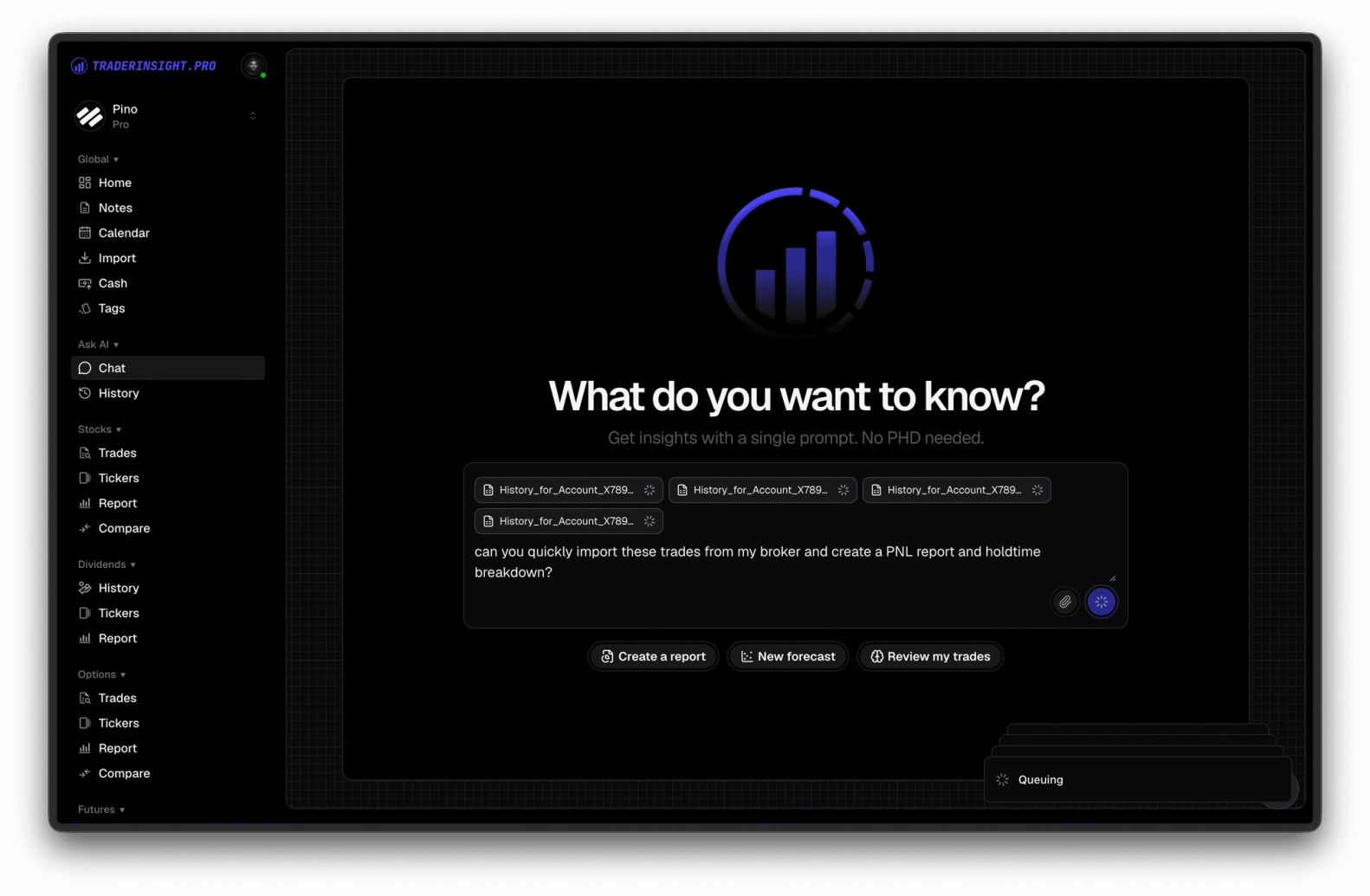
You can ask plain English questions and get answers drawn from your own Trading.com history. AI analysis handles prompts like "How do I perform on FOMC days compared with normal days?", "Which pair has my best R:R on Trading.com?", "What time of day do I lose the most on EURUSD?".
Can I review my Trading.com journal on mobile?
Yes. After the US close, the mobile app still has full access to reports, notes, tags, and AI. Mark the news day mistake while you still remember the headline.

What if my Trading.com setup uses a different platform or format?
Tell us and we will look at adding it. Request a broker or email team@traderinsight.pro, and we add formats ASAP.
How do I start journaling my Trading.com trades?
Get your trading journal, connect MT5 once, and your Trading.com history builds itself while you trade.
Frequently asked questions
What is the best trading journal for Trading.com?
TraderInsight.pro is built for Trading.com MT5 traders who want US forex traders who want session, pair, and news day reviews. It syncs forex pairs and the cash events your account reports, and more, automatically, then adds reports, tags, and AI analysis that the MT5 history tab does not have.
Does TraderInsight.pro support Trading.com?
Yes, through MetaTrader 5. Run the connector in the MT5 terminal where you trade Trading.com and filled trades sync to your journal in seconds. Setup is in the MT5 import guide.
How do I import my Trading.com trades?
You do not export or edit any file. Download the connector from Settings, Data Sources, allow WebRequest for https://app.traderinsight.pro in MT5, place the file in the MQL5 Services folder, and paste your API key. Past trades and events then sync in the background. Full steps are in the MT5 import guide.
Does TraderInsight.pro work for US forex traders?
Yes. Any MT5 account syncs regardless of region, so Trading.com forex fills for US clients land in your journal like any other.
Does Trading.com offer stocks or crypto on MT5?
The US MetaTrader 5 offering is forex focused. The journal syncs whatever your MT5 account trades, so if instruments change you do not need to reconfigure anything.
How do I track my performance on news days with Trading.com?
Tag news day trades, then compare them with other sessions in reports and the comparison report.
Can I connect more than one Trading.com account?
Is there a mobile app for my Trading.com journal?
Yes. The mobile app is the full journal on iOS and Android: every report, note, tag, calendar view, and AI answer from desktop.
Can I journal Trading.com demo trades?
Yes. Demo and live MT5 logins both sync, so paper traders get the same reports, calendar, and AI tools. Trading.com practice accounts work as long as you connect an MT5 demo login.