Table of Contents
NinjaTrader users are typically serious futures traders. You've already put in the work on strategy development, backtesting, and execution. The problem most NT traders hit next is the same one that trips up experienced traders everywhere: great execution data with no systematic review process to learn from it.
NinjaTrader's Trade Performance window shows you the numbers. But it doesn't give you a place to tag trades by setup and session type, write structured notes on what you did right, or compare your performance across strategy iterations over months. That's where a dedicated futures trading journal built around your actual data changes the dynamic.
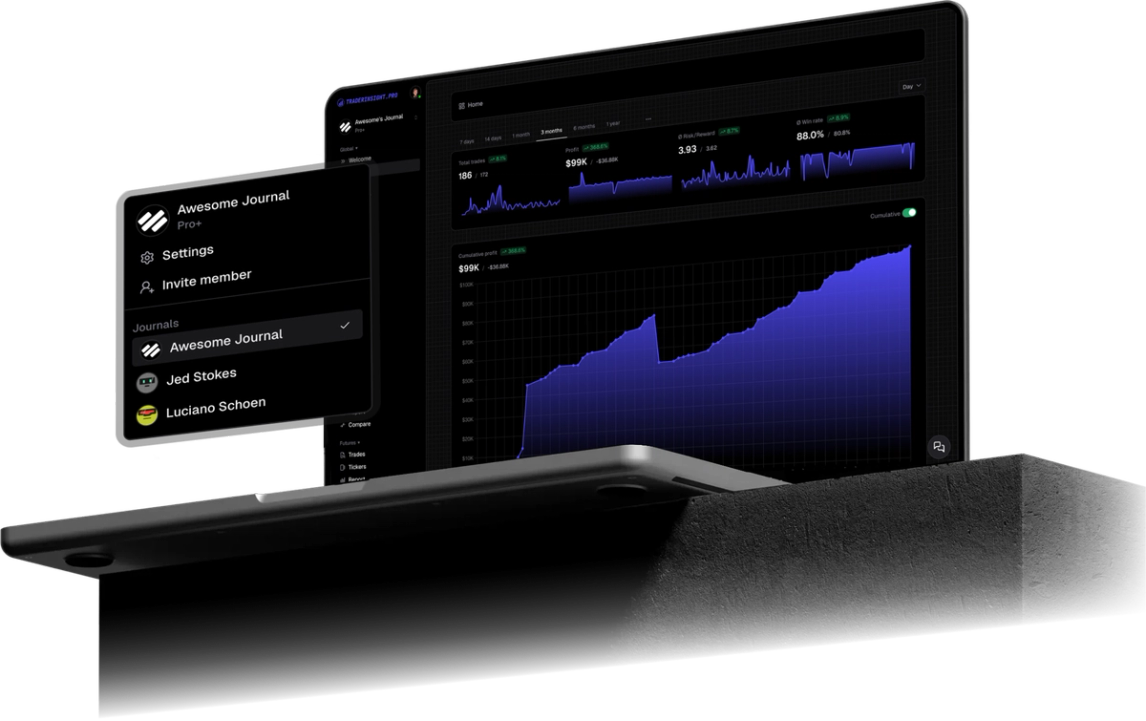
TraderInsight.pro handles the import from NinjaTrader cleanly, then gives you customizable reports, a tagging system flexible enough to reflect your own trading framework, and AI-powered analysis that answers questions about your data in plain English.
What NinjaTrader's Trade Performance Window Doesn't Cover
NinjaTrader's built-in analytics are more capable than most broker tools - but they're still execution-focused. You can see max drawdown, profit factor, and cumulative P&L. What you can't do is:
- Tag individual trades with the specific setup or market condition that triggered them
- Write contextual notes tied to a specific trade and review them later
- Compare the performance of two or more distinct strategies against each other
- Ask "what's my average R:R on days I trade between 9:30 and 10:30 AM for my futures trades?" in plain English with our AI
Those capabilities require something purpose-built for trader review and reflection - not just execution reporting.
How to Export Your Trade History from NinjaTrader
Step 1: Open Trade Performance
In the NinjaTrader Control Center, go to New and select Trade Performance. This opens your performance dashboard.
Step 2: Switch to Executions view
From the Display dropdown at the top of the Trade Performance window, select Executions. This gives you the granular fill-level data that TraderInsight.pro uses to reconstruct your trades.
If you prefer trade-level data (entries and exits grouped as single records), select Trades from the same dropdown instead - both formats are supported.
Step 3: Set your account and date range
Use the Filter button to select the account you want to export. Set your From and To dates, then click Generate to load the data.
By default, NinjaTrader may only show current-session data. Always verify your date range before exporting.
Step 4: Export to CSV
Right-click anywhere in the execution grid and select Export. Save the file as CSV to your preferred location.
Importing into TraderInsight.pro
- Go to the Import page.
- Select NinjaTrader from the broker list.
- Drag and drop your exported CSV file.
Building a Review System Around Your NinjaTrader Data
The most useful thing you can do after import is design a tagging structure that maps to your actual trading framework. If you trade multiple setups - say, trend continuation, failed breakout, and VWAP reclaim - create a tag group for setups and tag every trade accordingly. Over time, that creates a filterable dataset showing you exactly how each setup performs across different market conditions.
The Calendar view is particularly revealing for futures traders: daily P&L laid out chronologically makes consistency problems and overtrading patterns immediately visible.
If you share your journal with a trading coach or mentor, the sharing feature gives them read access without exposing your brokerage credentials.