Table of Contents
E*TRADE has been around long enough to have serious traders with years of history sitting in their accounts - stocks, options, dividends, stacked up in transaction logs that are useful for tax time and not much else. The data is there. The analysis isn't.
E*TRADE's native tools default to a portfolio view: total return, holdings, value over time. What they can't tell you is whether your covered calls outperform your directional long equity positions, which expiration windows consistently work best, or how your win rate changes depending on how long you held a position. A dedicated trading journal is the only way to answer those questions from real data. TraderInsight.pro is it.
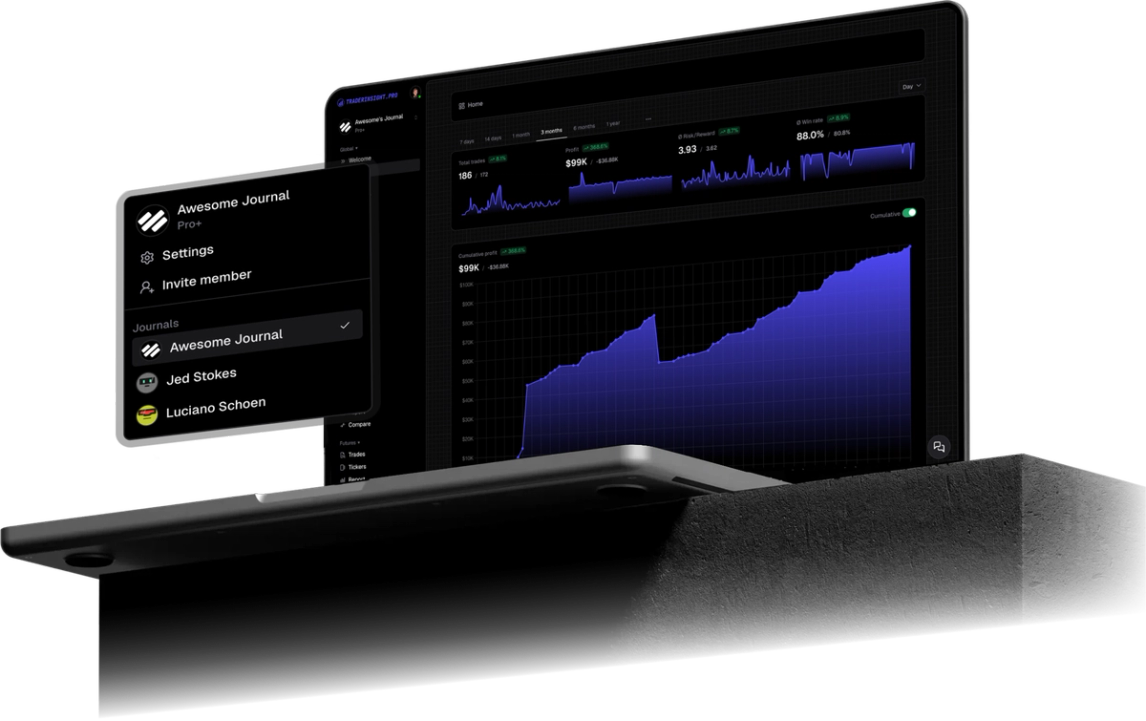
Import your E*TRADE history via CSV, and within minutes you're running performance reports, AI analysis, and comparison reports filtered exactly the way you think about your trading.
Why E*TRADE traders use TraderInsight.pro
E*TRADE's interface is built for investors managing a portfolio. It's not designed for traders who run strategies, manage position sizing, or test setups across different market conditions. The gap shows up immediately when you try to answer any trader-level question:
- Which of your strategies produces the best risk/reward over time?
- Are you better in the morning or the afternoon?
- Do you exit too early, or hold losers too long?
None of that is answerable from E*TRADE's interface. A dedicated options trading journal built for active traders tracks all of it - and with TraderInsight.pro's AI chat, you can ask those questions in plain English and get answers from your actual data instantly.
What does TraderInsight.pro support from E*TRADE?
TraderInsight.pro supports the E*TRADE CSV export (saved as DownloadTxnHistory.csv). Supported types include stocks, options (including exercises and expirations), dividends, and more - new types are added regularly.
How to export from E*TRADE
Step 1: Log in and go to Transactions Go to etrade.com and log in. Click the Accounts tab, then select Transactions (or Transaction History) from the dropdown.
Step 2: Select account and date range Use the account selector if you have multiple accounts. Set a Custom date range in the Time Period filter and click Search to load transactions.
Tip: To include option exercises and expirations, make sure no transaction type filters are applied - "All Transaction Types" should be selected.
Step 3: Download as CSV Click the Download icon in the top-right corner of the transaction table. Select Spreadsheet Format (Microsoft Excel) or CSV, then confirm. The file saves as DownloadTxnHistory.csv.
How to import into TraderInsight.pro
- Open the Import page.
- Drag your CSV onto the import area - or click to browse.
- Done.
Stocks, options, dividends, and more will all be parsed automatically.
How to use your E*TRADE data to improve
How to analyze your options strategies by type and expiration
Use strategy tags to label each options position by structure - covered calls, long puts, cash-secured puts, verticals, or whatever categories match your approach. Tag by expiration cycle (weekly, monthly) as well. Then run performance reports filtered to each tag to see which setups actually have a positive expectancy and which ones are being forced.
How to compare your E*TRADE strategies side by side
The comparison report lets you stack any two strategy segments against each other - premium selling versus directional trades, one expiration window versus another, equities versus options. For E*TRADE traders running multiple approaches simultaneously, this is the fastest way to see which one is doing the work.
How to track your dividend income alongside trading P&L
TraderInsight.pro captures dividend records from your E*TRADE export alongside trade history. Use cash reporting to see dividend income separately from your active trading P&L - useful for investors who run a hybrid approach.
How to document your trade reasoning for future review
Trade notes in TraderInsight.pro let you attach written reasoning, screenshots, and market context directly to each position. Over time, this creates a searchable record of your decision-making - especially valuable for reviewing losing trades to understand whether the loss was a process error or just variance.
How to ask AI questions about your E*TRADE trade history
AI analysis answers plain-English questions about your data - "What's my average hold time on winning options trades versus losing ones?" or "Which sectors produce the most consistent profits?" - using your real E*TRADE history.
Mobile access
The TraderInsight.pro mobile app gives full feature parity on iOS and Android - same reports, tags, notes, and AI as desktop.
Frequently Asked Questions
Does TraderInsight.pro support E*TRADE?
Yes. Export your transaction history from Accounts → Transactions in E*TRADE and drop the CSV on the import page. The format is recognized automatically.
What is the best trading journal for E*TRADE?
TraderInsight.pro. Export your transaction history as CSV, drop it on the import page, and your full E*TRADE history is live instantly - ready for performance reports, AI analysis, strategy tags, and a P&L calendar.
How do I import my E*TRADE trades?
Log into etrade.com, go to Accounts → Transactions, select All Transaction Types, choose your date range, download as CSV, and drag and drop onto the import page.
Does TraderInsight.pro support E*TRADE options?
Yes. Options including exercises and expirations are supported. Make sure All Transaction Types is selected when exporting to capture these events.
Does TraderInsight.pro support dividends from E*TRADE?
Yes. Dividend records are parsed from the E*TRADE CSV and tracked alongside trade history in cash reporting.
Can I use AI to analyze my E*TRADE history?
Yes. AI analysis answers plain-English questions about your E*TRADE trade data instantly.
Is there a mobile app?
Yes. The TraderInsight.pro mobile app has full feature parity on iOS and Android.