Table of Contents
Tradovate got a lot right: clean interface, competitive commissions, web and mobile apps that actually work. Futures traders who moved to Tradovate from older platforms appreciate the speed and usability. What Tradovate - like most execution platforms - leaves underdeveloped is the review side.
If you're serious about futures trading, the work you do between sessions is just as important as what happens during the session. That means reviewing your trades, understanding why certain days go sideways, and building a structured record of what your strategies actually produce over time. TraderInsight.pro gives you that layer.
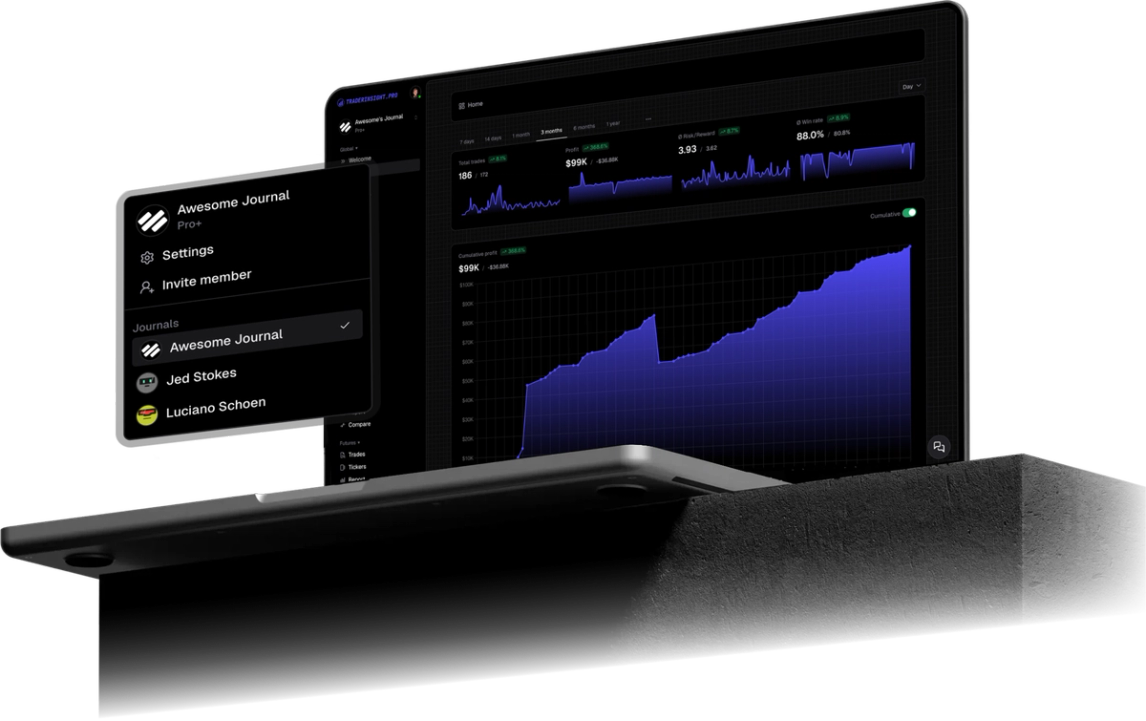
Import your Tradovate history and get performance reports, AI-powered analysis, a P&L calendar, and a proper journaling system - all built around your real data.
Why Tradovate traders use TraderInsight.pro
Tradovate gives you an account P&L, a list of orders, and some basic reporting. What's missing is the ability to filter by strategy or setup, visualize consistency patterns over weeks and months, compare the performance of different futures contracts against each other, or document what was happening in your head when you made a decision.
For day traders running multiple sessions per day across different instruments, that analytical gap compounds quickly. Losing patterns that would be obvious in a proper journal stay invisible in a transaction list.
What does TraderInsight.pro support from Tradovate?
TraderInsight.pro supports Tradovate's Orders.csv export and Performance.csv export, as well as Cash History for commission and fee tracking. Futures are fully supported. More asset types are added regularly.
How to export from Tradovate
Tradovate organizes exportable data across two tabs: Orders (your executed trades) and Cash History (commissions and fees).
Step 1: Access your account reports
- Desktop app: Hover over your account name at the top, then click the gear icon that appears next to it.
- Web platform: Click the Reports tab from the main navigation.
Step 2: Export your Orders Click the Orders tab. Set your desired date range, click Go (or Apply), then click Download CSV. Save this file - it contains your trade executions.
Step 3: Export Cash History (recommended) Click the Cash History tab. Set the same date range, then click Download CSV. This file contains commissions and fees.
For a complete picture including costs: open yourOrders.csv, copy the rows from yourCash.csv, and paste them below the last row of the Orders file before importing. Or simply import both files separately - TraderInsight.pro handles both record types.
Note: Tradovate also exports aPerformance.csv. TheOrders.csvis generally the better import - it contains more trade information including accountId. UsePerformance.csvonly if you prefer its format.
How to import into TraderInsight.pro
- Go to the Import page.
- Drag and drop your Orders CSV (with or without appended Cash History rows).
- Done.
How to use your Tradovate data to improve
How to spot overtrading patterns across your session history
The trading calendar gives you an instant P&L overview by day. For futures traders running RTH and ETH sessions, this view immediately reveals the days where increased activity correlated with worse results - a clear signal about where discipline breaks down.
How to compare performance across instruments and session types
Use strategy tags to categorize trades by instrument (ES, NQ, CL, etc.), session type (RTH vs. ETH), or setup type. Once tagged, the comparison report lets you see exactly which categories are pulling weight and which ones are costing you.
How to track commission and fee drag on your real returns
Import your Cash History alongside your Orders to capture commission and fee data in cash reporting. For high-frequency futures traders, fee drag is significant - and seeing its actual impact by instrument or strategy is the first step to managing it.
How to document your session reasoning and learn from mistakes
Add session notes that document your pre-session plan and what deviated from it. When you review a session that went sideways, the note tells you exactly what you were thinking - far more useful than staring at a P&L line trying to reconstruct your mindset.
How to share progress with a mentor or trading group
The sharing feature lets you give a coach, mentor, or accountability partner access to your journal with controlled permissions - no account credentials required.
Mobile access
The TraderInsight.pro mobile app gives full feature parity on iOS and Android - same reports, tags, notes, and AI as desktop.
Frequently Asked Questions
Does TraderInsight.pro support Tradovate?
Yes. Tradovate Orders.csv, Performance.csv, and Cash History exports are all supported.
What is the best trading journal for Tradovate?
TraderInsight.pro. Export your Orders CSV from the Tradovate desktop app or web platform, drop it on the import page, and your futures history is live instantly - ready for performance reports, AI analysis, and strategy tags.
How do I import my Tradovate trades?
From the Tradovate desktop app, hover over your account name, click the gear icon, go to Orders, set your date range, and click Download CSV. Then drop the file on the import page.
Should I import the Orders.csv or Performance.csv from Tradovate?
The Orders.csv is generally recommended - it contains more trade detail including accountId. The Performance.csv works but has less information.
Can I include commission and fee data from Tradovate?
Yes. Export your Cash History separately, and either import it alongside your Orders file or append the rows manually. Cash reporting tracks fee impact.
Does TraderInsight.pro support Tradovate futures?
Yes. Futures are fully supported from Tradovate exports.
Can I use AI to analyze my Tradovate trade history?
Yes. AI analysis answers plain-English questions about your Tradovate data - session performance, instrument comparisons, behavioral patterns, and more.
Is there a mobile app?
Yes. The TraderInsight.pro mobile app has full feature parity on iOS and Android.