Table of Contents
CMEG built its reputation on one thing that matters a lot to active stock traders: no Pattern Day Trader restriction. Access to unlimited day trades with a smaller account is genuinely valuable - but it also removes a guardrail that, for a lot of traders, was masking bad habits.
Without PDT limits, you can trade as often as you want. That freedom is only useful if you're honest about whether each trade is worthwhile. The traders who use CMEG well are the ones who track everything, hold themselves accountable, and build a structured review process around their activity. The ones who don't tend to find that the freedom to trade more just means the freedom to lose more.
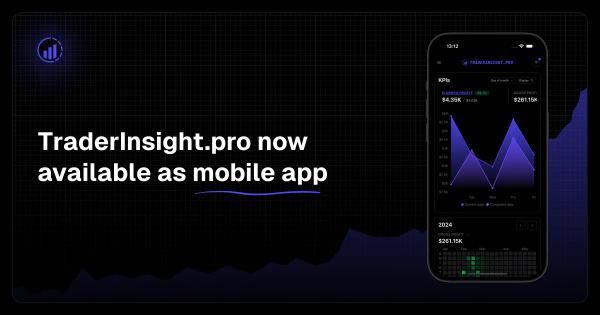
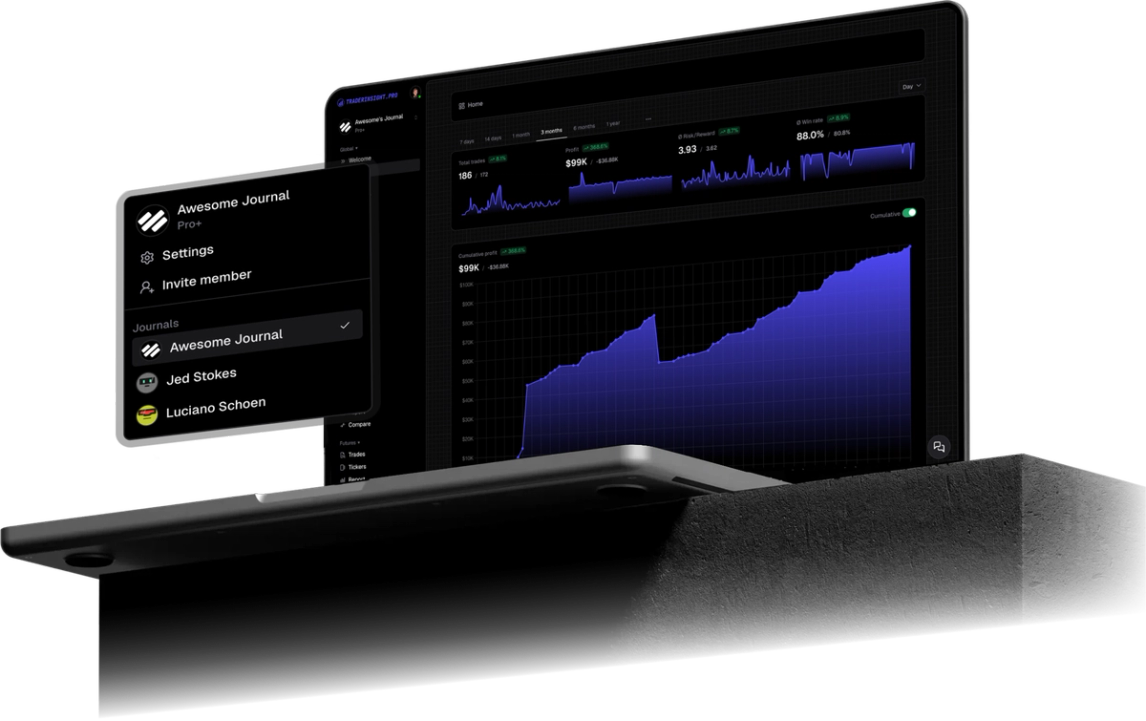
TraderInsight.pro is the accountability layer. Import your CMEG history and get performance reports filtered by strategy and setup, a P&L calendar that shows overtrading patterns in stark relief, and AI-powered analysis that answers questions about your actual trading data.
The Overtrading Problem and How Analytics Fixes It
PDT-free trading often leads to increased trade frequency - sometimes productively, sometimes not. One of the clearest patterns in active trader data is overtrading: taking low-quality setups out of boredom, chasing losses, or trading outside your defined hours. These patterns are nearly invisible in a transaction list but immediately obvious on a Calendar view or when you filter your reports by time of day.
For day traders specifically, seeing your average P&L by hour over three months is often enough to restructure an entire trading schedule. That data exists in your CMEG history - you just need the right tool to surface it.
How to Export Your Trade History from CMEG
CMEG uses DAS Trader Pro as its primary execution platform. Here's how to export from DAS:
Step 1: Open DAS Trader Pro
Log into the DAS Trader Pro platform connected to your CMEG account.
Step 2: Open the Trade Log
From the top menu, go to Trade → Trade Log. This opens your execution history panel.
Step 3: Set your date range
At the top of the Trade Log panel, set the From and To dates covering the history you want to export.
Step 4: Export as CSV
Right-click anywhere within the trade log table and select Export. Save the file as CSV to your computer.
Alternatively, check your CMEG client portal at cmeggroup.com for downloadable account statements - some account types provide statement files directly from the portal.
Importing into TraderInsight.pro
- Go to the Import page.
- Drag and drop your CSV.
- Done.
Building Your Review System
After import, a few things that make an immediate difference for active traders:
- Use the tagging system to label every trade by setup type. Over time, separating your A-setup trades from B and C setups reveals which ones actually deserve your capital.
- Add notes to trades where something notable happened - a mistake, a good execution, a lesson. This creates a searchable personal playbook that compounds in value over months.
- Pull up the comparison report to stack your best trading hours against your worst. For many active traders, this single view justifies the journal entirely.
- For traders sharing progress with a mentor or community, the sharing feature handles access without exposing account details.