Table of Contents
Blofin offers a modern trading environment for stock traders looking for an alternative to more established platforms. Like most execution-focused platforms, it does the transaction side well. What tends to fall short is the analytical layer - the tools that tell you not just what happened in your account, but what it means for your development as a trader.
Connecting your Blofin history to TraderInsight.pro fills that gap. Import your trade data and get access to performance reports that go far beyond what any broker dashboard provides - broken down by strategy, time of day, setup type, or any other dimension you choose to tag.
Why Broker-Level Analytics Aren't Enough
Every broker shows you some version of account history and P&L. What none of them let you do is annotate your trades with context, filter by setup type, or ask the question "am I actually good at this" with statistical backing.
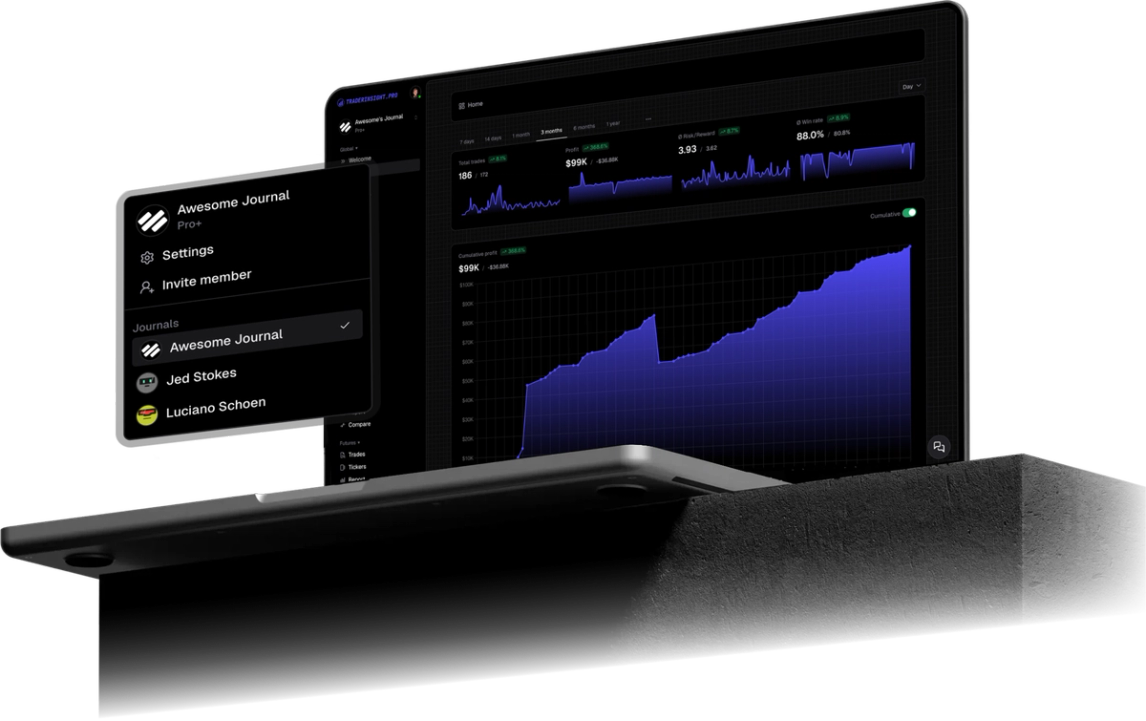
For stock traders, the comparison report is often the most revealing starting point: stack your best-performing setups against your worst and see where your edge actually lives. Combine that with the Calendar view to identify which sessions and days are doing the work, and you have a data-driven basis for adjusting how and when you trade.
The AI chat adds another dimension: ask questions about your data in plain English and get answers instantly, without building a single report manually.
How to Export Your Trade History from Blofin
Step 1: Log into your Blofin account
Go to blofin.com and log in.
Step 2: Navigate to Orders or Trade History
In your account dashboard, locate the Orders or Trade History section. This is typically accessible from the main account menu or your profile area.
Step 3: Set a date range
Use the date filters to select the time period you want to export.
Step 4: Download as CSV
Click the Export or Download button - usually in the top-right area of the trade history table - and save the CSV file.
Importing into TraderInsight.pro
- Open the Import page.
- Drag and drop your downloaded CSV.
- Done.
Starting Your Analysis
After import:
- Set up a tagging structure that reflects the kinds of trades you take. Even two or three setup categories will generate meaningful data within a few weeks.
- Write trade notes on positions where something interesting happened - good or bad. These entries become invaluable as reference points when patterns start to emerge.
- Check the Calendar view for a quick sense of where your profitable days are clustering.
Questions?
If your Blofin export doesn't parse correctly on import, contact the team with your file.